Understand the Basics Before You Choose a Device

Every feature on a spec sheet connects to something you actually do with a device. Knowing what each one means saves you from overpaying for specs you don't need or buying something that falls short.
Screen size is measured diagonally in inches. A 7-inch tablet fits easily in a bag and works well for reading. A 10- or 11-inch screen is better for video calls or schoolwork. Bigger screens drain battery faster, so there's a trade-off.
Storage is where your apps, photos, and files live. Most everyday users manage fine with 64GB, but if you download videos or lots of apps, aim for 128GB or more. Memory, often called RAM, is different. It controls how smoothly the device runs multiple tasks at once. 4GB RAM handles basic use; 6GB or more keeps things responsive.
The processor is the engine. A faster processor means quicker app loading and smoother video playback. Battery life tells you how many hours of real use you get between charges.
Cameras, ports, and connectivity round out the picture. Ports like USB-C let you charge and transfer files. Wi-Fi connects you at home, Bluetooth pairs with headphones or keyboards, and mobile data keeps you connected anywhere with a signal.
Match the Right Portable Device to Everyday Needs
Picking a device based on a friend's recommendation or a flashy ad rarely ends well. Start with how you actually plan to use it, and the right choice becomes much clearer.
Studying and Schoolwork
Students benefit most from a screen of at least 10 inches, solid battery life, and support for a keyboard attachment. Storage matters too – 64GB fills up fast with textbooks, notes, and apps.
Reading and Entertainment
For casual reading or streaming, a lighter tablet with a sharp display is the priority. Screen brightness and glare reduction matter more than processing speed here.
Travel
Weight and battery capacity become the deciding factors when you're moving through airports or trains. A compact device under 500 grams with 10-plus hours of battery handles most travel days without a charger hunt.
Children and Seniors
Kids need durable builds and parental controls. Seniors generally do better with larger text support, simplified interfaces, and loud, clear speakers.
Video Calls and Light Office Work
Front camera quality and microphone clarity matter most for calls. For documents and spreadsheets, look for keyboard compatibility and enough RAM – 4GB is a reasonable floor.
Before choosing, ask yourself: Where will I use this most? Do I need a physical keyboard? How much storage do I realistically need? Will I use it outdoors?
Set Up Your Device for Safe and Smooth Daily Use
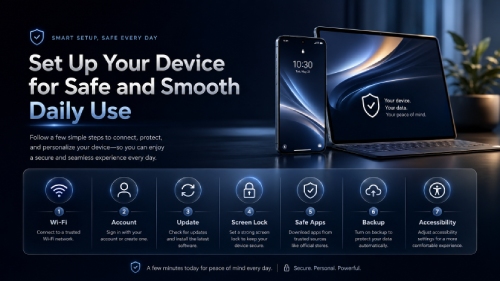
Before anything else, connect to Wi-Fi. Open Settings, find the Wi-Fi option, select your home network, and enter the password. Without a connection, almost nothing works properly, including updates and app downloads.
Once connected, create or sign in to a user account. On Android, that means a Google account. On Apple devices, an Apple ID. These accounts tie your apps, purchases, and backups together, so use an email address you actually check.
Run a software update immediately. Manufacturers push security patches constantly, and a brand-new device can already be weeks behind. Go to Settings, find "System" or "General," and check for updates.
Set a screen lock next. A six-digit PIN is the bare minimum. Fingerprint or face unlock adds convenience without sacrificing security. Avoid using "1234" or your birth year.
When downloading apps, stick to the official app store on your device. Read what permissions an app requests before accepting. A flashlight app asking for access to your contacts is a red flag worth taking seriously.
Turn on automatic backups. Most devices offer free cloud backup through their account system. Enable it now, before something goes wrong.
Accessibility settings are easy to overlook. Larger text, display zoom, and voice assistance are built-in and take under a minute to adjust.
Keep Devices Running Well With Simple Maintenance and Troubleshooting
Small habits make a big difference in how long a portable device stays reliable. Cleaning, charging, updating, and checking storage regularly can prevent many of the slowdowns and faults that users often mistake for serious hardware problems.
Basic Care That Prevents Bigger Problems
Regular upkeep takes about five minutes a week and saves you from expensive repairs. Clean your screen with a dry microfiber cloth – never paper towels or household sprays, which scratch coatings and damage oleophobic layers. For stubborn smudges, slightly dampen the cloth with water only.
Battery health matters more than most people realize. Avoid letting your charge drop to zero regularly. Keeping it between 20% and 80% extends the battery's lifespan noticeably over months of use.
Storage fills up faster than expected. Delete unused apps, clear app caches in your settings menu, and move photos to cloud storage or a computer. A device with less than 10% free storage slows down considerably.
Fixing Common Problems Quickly
Slow performance usually comes from too many apps running at once or a full storage drive. Close background apps and restart the device. That alone fixes roughly half of sluggishness complaints.
Frozen screens respond to a forced restart. On most tablets and phones, holding the power button for 10 seconds forces a reboot without data loss.
Wi-Fi dropping? Forget the network in your settings and reconnect fresh. If sound cuts out, check whether a Bluetooth device is still paired and pulling audio away from the speakers.
When to Repair, Reset, or Recycle
A factory reset clears persistent glitches that restarts won't fix. Back up your data first. If hardware problems like cracked screens or dead charging ports appear, a local repair shop often costs far less than replacement. Devices older than six years with failing batteries and no software support are reasonable candidates for recycling.
Good Device Habits Make Tech Easier to Live With
Treating a tablet, phone, or compact computer as a tool rather than a mystery changes everything about how you use it. When you understand what screen size actually suits your needs, how much storage you realistically need, and why a strong screen lock matters from day one, the device stops feeling overwhelming. Setting up safety features early, keeping software updated, and cleaning the screen occasionally are small habits that prevent most common problems before they start. There's no denying that most tech frustration comes from skipped steps, not broken hardware. Choose based on how you actually live, set things up properly once, and maintain the basics consistently. That's genuinely all it takes to get reliable, stress-free use out of everyday portable technology.